PDF print-proof checklist: before the full run.
Use a practical PDF print-proof checklist for dimensions, page order, bleed, marks, duplex alignment, cutting, and folding before production.
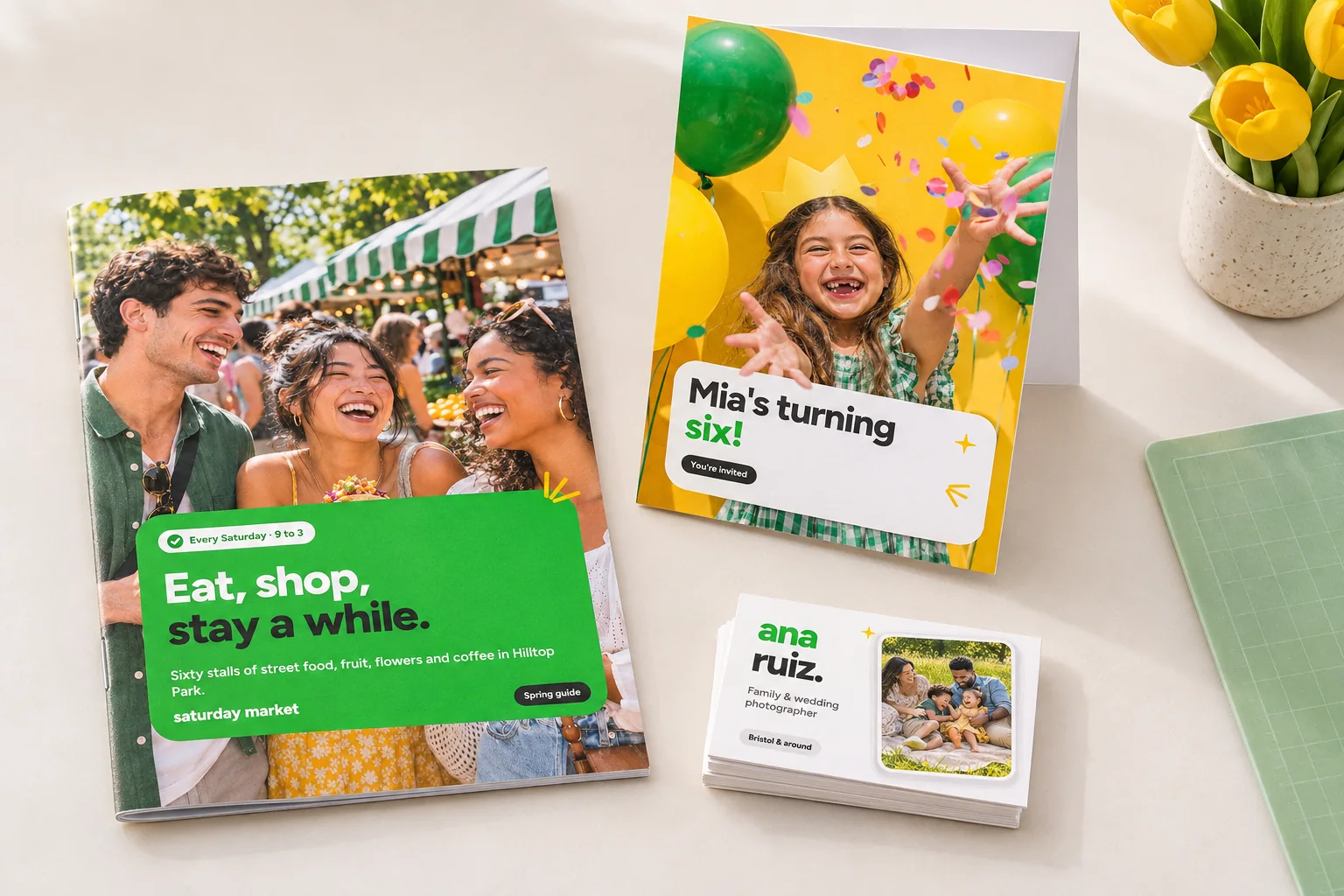
Before a print run, inspect the source PDF, the imposed output, and one physically finished proof. These are different checks: a correct sheet preview does not confirm print colour, front-to-back registration, cutting tolerance, or the way a folded piece reads.
- Check the source and exported PDF
- Measure a physical sample
- Cut or fold before approval
First, check the file you were given.
Confirm the version, page count, finished dimensions, and intended order. Inspect text, imagery, and content before arranging the pages. A PDF imposition workflow does not verify a phone number, repair every font problem, or certify a colour specification.
For production requirements such as a particular PDF/X standard, colour space, overprint behaviour, or output profile, use the appropriate export and preflight process. Adobe’s print-export and preflight references describe checks separate from sheet arrangement.
- Correct artwork revision and complete pages
- Intended trim size and supplied bleed
- Readable small type and adequate image detail
- Required production format agreed with the printer
Then, inspect what Raffle Ticket Maker exports.
Check the complete exported PDF, including the last sheet. A sample preview at the start of a job can miss a trailing blank, a different page size, or an end-of-run sequence issue.
- Paper size, orientation, scale, and usable margins
- Page pairs for booklets, or repetition and sequence for grids
- Bleed, gutters, trim marks, and fold guides
- Front/back relationships and any deliberately inserted blanks
Finish one copy before approving more.
Print on the intended device and, where practical, the intended stock. Measure a cut card or label. Fold and read a booklet. Gather a numbered ticket lift. Inspect front/back alignment and any visible border variation.
Record what was approved: source revision, layout settings, printer settings, stock, and date. Keep the export that produced the accepted proof. If a later edit changes size, order, paper, bleed, or finishing, check that change before treating the earlier proof as approval for the new job.
Before you
get started.
Does a successful Raffle Ticket Maker export mean the file passed preflight?
No. Export success means the configured workflow produced a PDF. It is not a certification of fonts, colour, PDF/X compliance, machine compatibility, or artwork accuracy.
Do I need a physical proof for a small run?
A small run can still have costly size, orientation, or finishing errors. One representative proof is a useful way to check the physical result, especially for an unfamiliar layout or printer.
Check the details.
Official product information and practical references. Reviewed .
The next step
is your PDF.
Start with a real sample. Adjust every step. Make a proof before the print run.