Print the same PDF page multiple times on one sheet
Print two or four copies of one PDF page on a sheet using step and repeat. Set the grid, scaling, margins, bleed, and crop marks before exporting.
In Raffle Ticket Maker, use Step & repeat to put copies of one PDF page on a sheet. Choose a 2 × 1 grid for two copies or 2 × 2 for four, set the paper and scaling, then export locally. With double-sided layout off, each source page produces its own repeated layout; ordinary sequential N-up places different pages in the cells.
- Repeat one design rather than different pages
- Two-copy and four-copy grid examples
- Check exact size before adding finishing marks
Printer copies and copies on a sheet differ
If you have a one-page flyer and ask a printer for four copies, you may receive four sheets. If you choose a four-up sequential layout, you may see just one occupied position because there is only one source page. Repeating the artwork within the sheet is a separate operation.
Step and repeat is the direct option for business cards, coupons, product labels, and identical mini-flyers. Quite’s documentation describes it as repeating each original page on a new sheet. Apple Preview also distinguishes Copies per page from Pages per Sheet. That distinction is useful even when you use Raffle Ticket Maker to save the arranged layout as a new PDF.
Only one position filled? Check what you asked to repeat.
A one-page PDF contains one source page, even when the preview has four available positions. Choose the operation by what should fill the other positions. These are different instructions, not interchangeable ways to request a quantity of four.
| Wanted result | Use | What to inspect |
|---|---|---|
| Pages 1, 2, 3, and 4 together | Sequential 2 × 2 N-up | Four different source pages; a one-page source leaves three positions empty |
| Page 1 repeated four times | 2 × 2 Step & repeat | The same source page appears in all four positions |
| Four copies of the whole finished sheet | Copies in the printer dialog | The quantity of the exported layout, not the number of cells inside it |
Make two or four copies of one page
Start with a PDF containing only the design you want to repeat. If the file contains several different pages, select the intended source pages before building the repeat layout; do not assume the tool will choose the first page for the entire document.
- 01
Add Step & repeat
Open the PDF and choose Step & repeat. Set Columns to 2 and Rows to 1 for two positions, or Columns to 2 and Rows to 2 for four. Leave Limit per sheet at 0 to make the full grid available.
- 02
Choose the output paper
Set A4, Letter, or the paper you will actually use. Compare portrait and landscape. Include enough space for the required margins and gaps; the number of cells alone does not establish that the artwork fits at its original size.
- 03
Decide whether to shrink
Use Fit with Keep proportions enabled when a full-page document needs to shrink into the cells. Choose Actual size for an item that must retain its dimensions, then increase the sheet size or reduce the grid if the required copies do not fit.
- 04
Inspect and export
Confirm that every occupied position contains the same intended artwork. Check the outer edges and the space between copies. Export the PDF and reopen it before printing a physical proof.
Worked example: one design or two designs
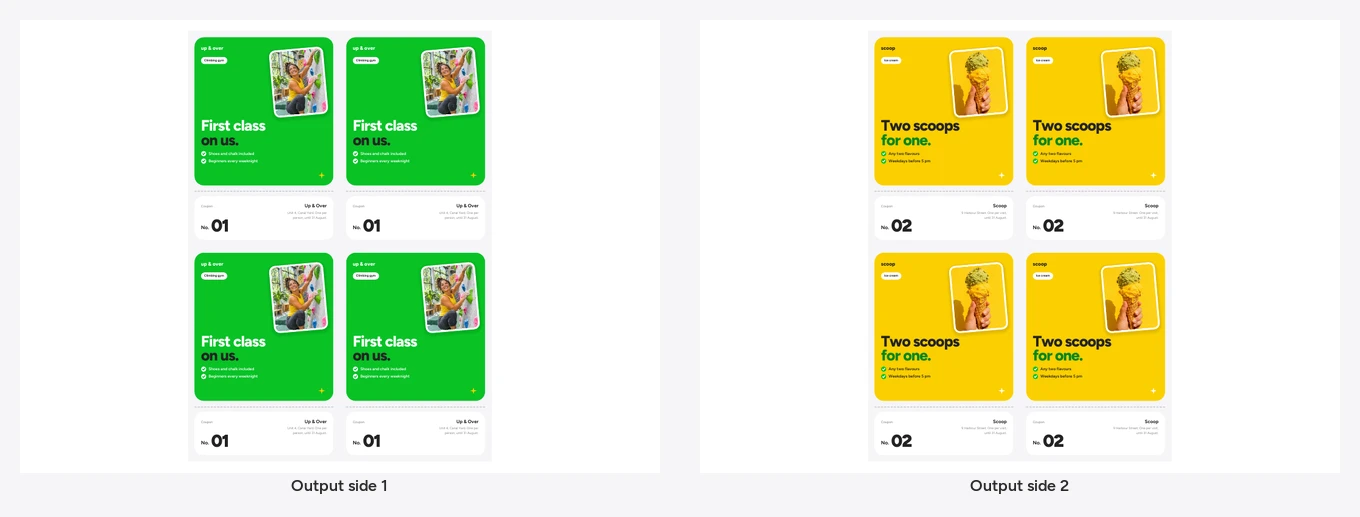
With one source page, a 2 × 2 Step & repeat grid, A4 landscape paper, and Fit scaling, Raffle Ticket Maker produces one output side containing page 1 four times. With two source pages and double-sided layout disabled, it produces two output sides: four copies of page 1 on the first and four copies of page 2 on the second.
This does not automatically pair a card’s front and back for a particular duplex printer. Confirm the order, turning direction, and back alignment through the separate duplex workflow and a physical proof. When the pages carry different ticket numbers, repeating each one is usually the wrong operation; consider N-up or cut and stack according to how the job will be gathered.
A real card job needs more than a repeat count
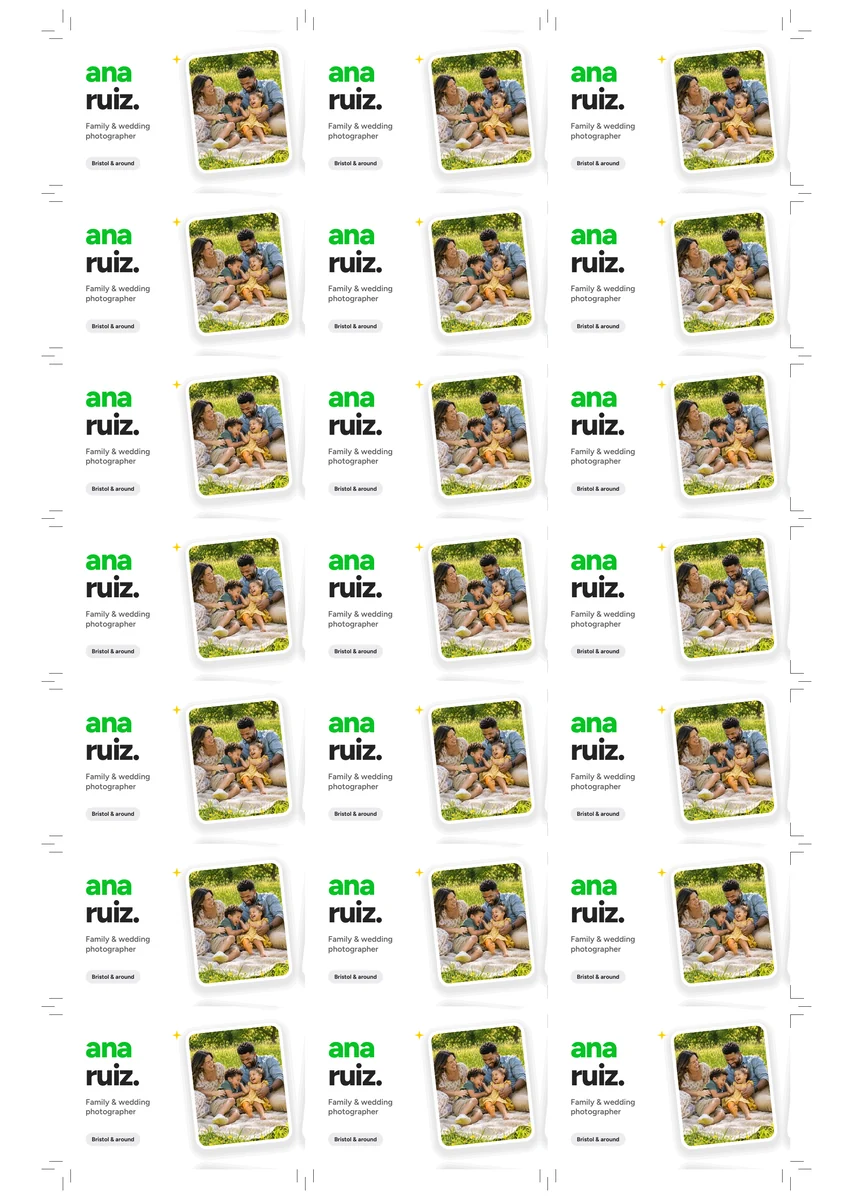
The Ana Ruiz business-card workflow starts with 85 × 55 mm cards, adds 3 mm bleed, and repeats them in three columns and seven rows on SRA3 portrait paper. Its 21 positions per side are a worked example, not a promise that the same grid fits another card, press, or stock.
Bleed, gutters, crop marks, and a printer’s non-printable margins take space. Pre-cut label sheets need their exact pitch and offsets, followed by a registration test. Do not scale an imposed label layout again to make it appear to fit. Print the exported PDF one output page per side, using the matching paper and appropriate scale, then measure and finish one proof before the full batch.
Before you
get started.
Can I repeat a page with the N-up tool?
Raffle Ticket Maker’s N-up tool includes Copies of each page. You can deliberately use it for repeated pages, but Step & repeat is a clearer starting point when each sheet should contain copies of one design.
Will the business-card preset fit my full-page flyer?
Not without changing the settings. The card preset includes a resize step and an actual-size repeat layout for small cards. Start a suitable repeat workflow for the flyer, set the intended size, and inspect scaling before export.
Check the details.
Official product information and practical references. Reviewed .
The next step
is your PDF.
Start with a real sample. Adjust every step. Make a proof before the print run.