How to number raffle tickets: three ways.
Number raffle tickets with a ticket maker, a Word mail merge, or a design app. What each needs, how long it takes, and where each one goes wrong.
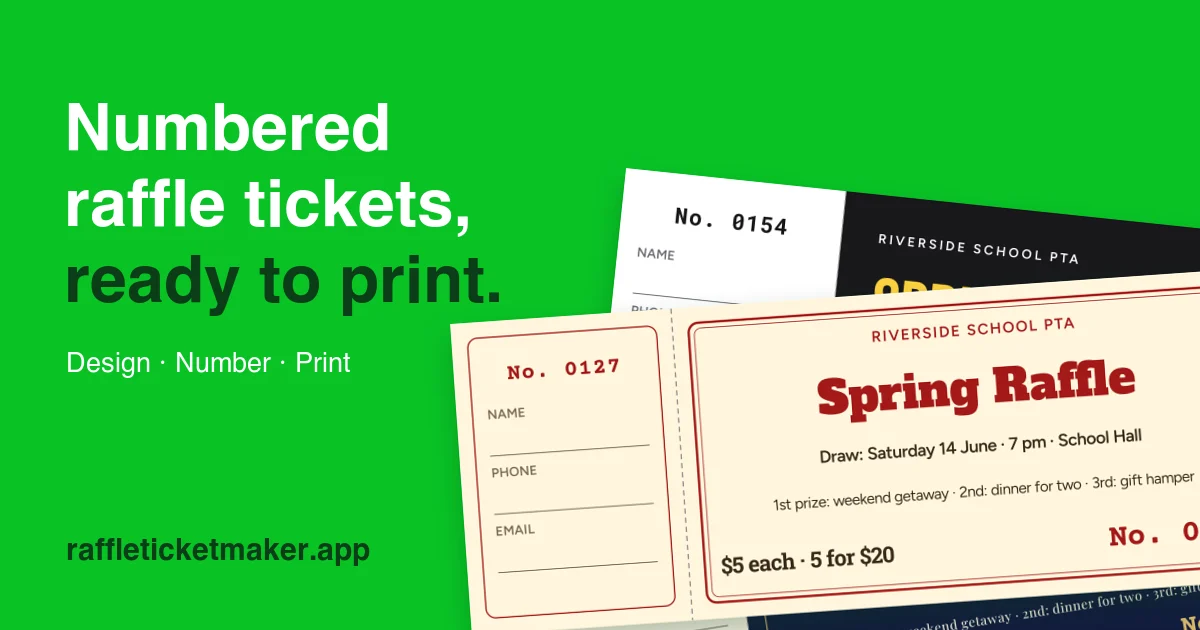
The quickest way to number raffle tickets is a ticket maker that counts for you: set the first number and the quantity in Raffle Ticket Maker and download the PDF. A Word mail merge also works but needs a number list and careful field setup. Design apps such as Canva usually mean typing each number or paying for a bulk tool.
- A ticket maker counts for you
- Mail merge needs a number list
- Stack order saves sorting
1. A ticket maker.
In Raffle Ticket Maker the number is part of the ticket. Type the first number and how many, choose the digits, and drag the number to where it prints on the stub and on the ticket. The sheet layout, the tear line and the cutting marks are set at the same time.
- 01
Design
Pick a design or upload your own.
- 02
Numbers
First number, how many, digits, prefix.
- 03
Sheet
How many a page, and the number order.
2. A Word mail merge.
Word has no ticket counter. The usual method is a mail merge: make a list of numbers in Excel, lay out a page of tickets in Word, insert the merge field on each ticket and its stub, and add a Next Record rule between tickets so the number advances. A second method uses SEQ fields.
It works, and it costs nothing if you have Word. The common problems are a number that starts at 2, the same number repeated down a page, a stub that does not follow its ticket, merge fields that will not go inside a text box, and leading zeros that vanish unless the list is stored as text.
- Needs: Word, a number list, patience with fields.
- Good for: one-off runs on a layout you already have.
- Watch for: tickets in page order only, so cut piles need sorting.
3. A design app.
Canva and Adobe Express have attractive raffle ticket templates, but a template is one ticket. Numbering means duplicating the design and typing each number, or using a bulk-create feature that takes a spreadsheet and makes one design per row, which Canva offers on its paid plans at the time of writing.
A practical mix is to design the ticket there, download it as a PDF, and add the numbers and the sheet layout afterwards.
What print shops use.
Printers often number with a data merge in InDesign, fed by a list generated in cut-and-stack order, or with dedicated numbering software. InDesign’s own multiple-record merge fills each sheet in sequence; stack order needs a specially ordered list or a script.
The problem every method shares: order.
If numbers run across each page, the pile you cut holds every eighth or tenth number and has to be sorted by hand. Cut-and-stack order runs each position’s numbers down through the pile, so the cut stacks are already in sequence. Check that whichever method you choose can do it before printing a large run.
| Ticket maker | Word mail merge | Design app | |
|---|---|---|---|
| Numbers each ticket | Automatic | From a number list | By hand or a paid bulk tool |
| Stub number | Automatic | Second merge field | By hand |
| Leading zeros | A setting | Store the list as text | Typed |
| Cut-and-stack order | A setting | Reorder the list yourself | No |
| Sheet layout | Automatic | You build the page | One ticket per page |
Before you
get started.
What is the easiest way to number raffle tickets?
A ticket maker with built-in numbering: you type the first number and the quantity and it does the rest, including the stub.
How do I get leading zeros, like 0001?
In Raffle Ticket Maker, choose the digits under Numbers. In a Word mail merge, format the Excel column as text before typing the numbers, or add a number format switch to the merge field.
Check the details.
Official product information and practical references. Reviewed .
The next step
is your PDF.
Start with a real sample. Adjust every step. Make a proof before the print run.