Number raffle tickets automatically.
Number raffle tickets online without a mail merge. Set the first number, the count and the digits; Raffle Ticket Maker prints the same number on the ticket and the stub.
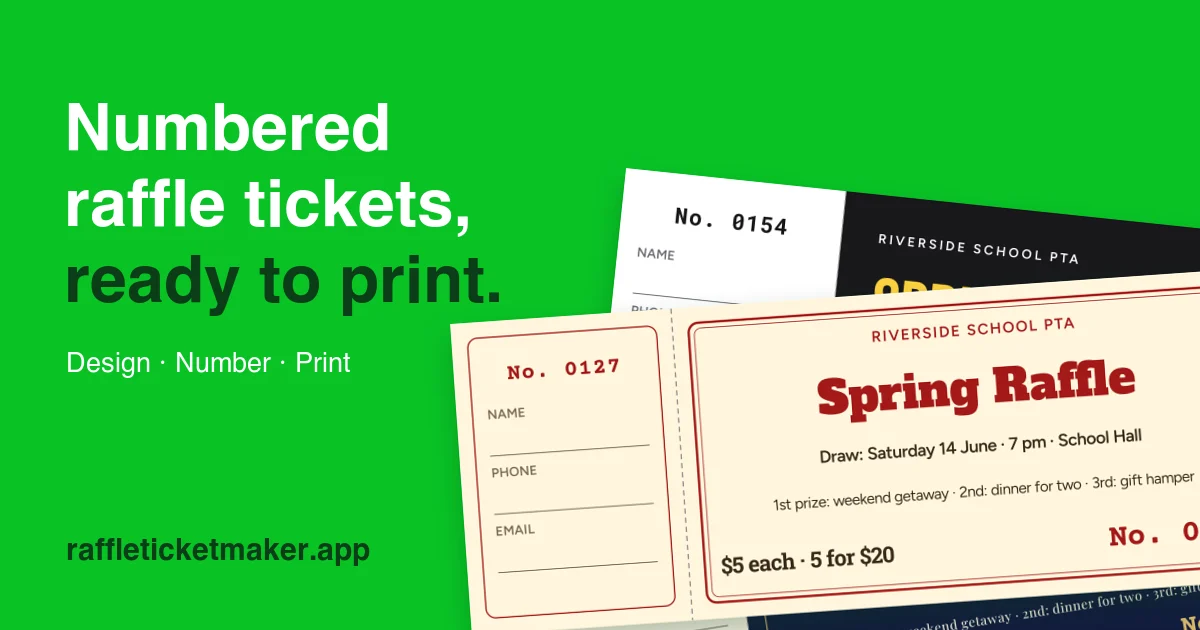
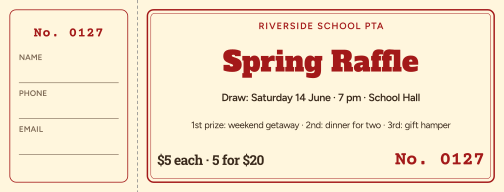
To number raffle tickets, open Raffle Ticket Maker, type the first number and how many tickets you need, and choose how many digits each number has. The same number prints on the ticket and on its stub, and you can drag each one to where it belongs. Download the PDF and print at 100%.
- Same number on ticket and stub
- Leading zeros, prefixes and books
- Cut-and-stack order
Set the run in three boxes.
Numbering needs three decisions: where the run starts, how many tickets it has, and how each number is written. A run of 500 starting at 1 with four digits prints 0001 to 0500. Add a prefix such as A- for one seller or one price, or a suffix such as /26 for the year.
Every ticket in the file carries its own number. The design itself is stored once and reused, so a run of several thousand tickets is still a small PDF.
Put the number where you want it.
A number is an ordinary element on the ticket. Drag it, pull a corner to make it larger, turn it sideways, and set its typeface and colour. Add as many as you need: one on the stub, one on the ticket, a small one on the back.
Any text can hold the number. Type {number} inside a sentence, such as “Ticket {number} of 500”, and it is filled in for each ticket.
- 01
Open the Numbers step
Type the first number and how many tickets.
- 02
Choose the digits
0001 keeps every number the same width, which looks tidier and sorts correctly.
- 03
Drag each number into place
Click a number on the ticket to move, resize or restyle it.
More than 1, 2, 3.
Raffles are rarely as simple as one run. These are ordinary settings rather than workarounds.
- Books: give every 5, 10 or 20 tickets a book number, printed with {book}.
- Skips: leave out single numbers, ranges, or any number containing a digit.
- Steps: count by twos, or count down.
- Random: unique numbers in no order, repeatable for a reprint.
- Your own list: paste numbers, names or seat codes from a spreadsheet.
- Check digit: an extra digit that catches a misread number.
Keep the tickets in order after cutting.
Numbers that run across each sheet leave you with piles that jump through the sequence. Choose cut-and-stack order and each number runs down through the pile instead, so one cut gives stacks that are already in order.
Before you
get started.
Can I start at a number other than 1?
Yes. Type any first number. To print a second batch later, use “Continue after” in the Numbers step and the new run starts where the last one ended.
How many tickets can one job hold?
Up to 20,000 tickets in one PDF. Larger runs can be made as several jobs, each continuing from the last number.
Does the number have to be on the stub too?
No. Each number is its own element: keep both, remove one, or add more.
The next step
is your PDF.
Start with a real sample. Adjust every step. Make a proof before the print run.