Add sequential numbers to your own ticket artwork.
Add sequential numbers to tickets, vouchers and coupons you designed elsewhere. Upload a PDF, PNG or JPEG, place the numbers, and export a print-ready PDF.
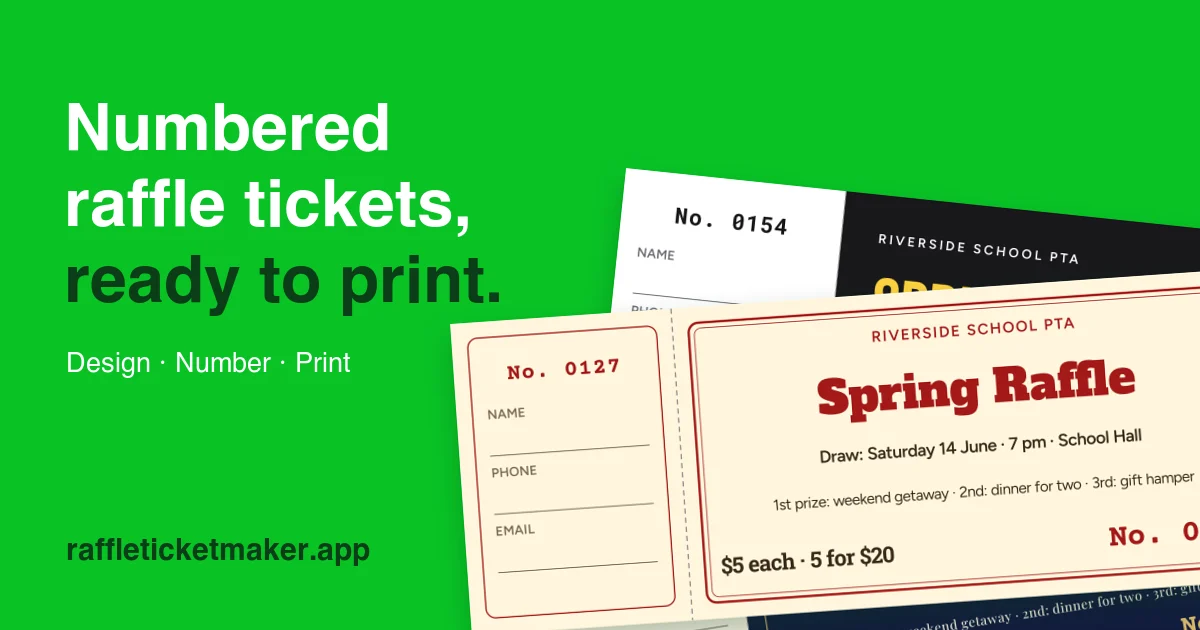
Upload your finished ticket as a PDF, PNG or JPEG and Raffle Ticket Maker uses it as the whole ticket at its real size. Place one or more numbers on it, set the first number and the count, and download a PDF with every ticket numbered and laid out on sheets.
- PDF artwork stays vector
- Several number positions
- QR codes and barcodes
Bring the artwork as it is.
A PDF page is placed as a vector drawing, so type and logos stay sharp at any size. A picture that states its print resolution, such as a 300 dpi export, comes in at its real size; any other picture keeps its shape and takes the ticket’s width.
The artwork is locked in place so it cannot be moved by accident. Everything you add sits on top of it.
What people number.
The same steps work for anything printed many times with one changing value.
- Raffle, tombola and 50/50 tickets
- Event and admission tickets
- Drink, meal and cloakroom tokens
- Gift vouchers and coupons
- Membership and loyalty cards
- Tags, labels and asset stickers
A code that scans.
Add a QR code or a barcode and give it {number}: each ticket gets its own. A QR code can hold a link with the number in it, so scanning ticket 0147 opens that ticket’s page. Barcodes are Code 128 or Code 39.
After numbering.
Download the tickets laid out on sheets, or as one ticket per page for a print shop. A spreadsheet of every number, with columns for seller, buyer and payment, comes with it. For press work, the numbered tickets open directly in the imposition tools.
Before you
get started.
Will the numbers be in my PDF as text?
They are drawn as outlines, the way printers ask for type to be supplied, so they look identical on every device and no font needs to be embedded.
Can I number from a spreadsheet?
Yes. Choose My list under Numbers and paste a column, or import a CSV. With a heading row, other columns can be printed too: type the heading in braces in any text.
The next step
is your PDF.
Start with a real sample. Adjust every step. Make a proof before the print run.